
You remember the photo. You just don’t remember the folder.
It happens easily. Photographs arrive from phones, cameras, downloads, old computers and external drives. Over time they end up spread across folders with names such as DCIM, Pictures, Holiday 2023, New Folder, or whatever made sense at the time.
Months or years later, you remember the photograph clearly — but not where you saved it.
The good news is that if you need to find photos on your PC but cannot remember the folder, filename or date, there are several practical ways to track them down.
Start with what you do remember
Before searching through hundreds of folders, think about what you actually remember about the photograph.
It might be:
- the person in it
- the place where it was taken
- approximately when it was taken
- what was visible in the photograph
- which phone, camera or drive it may have come from
Those clues are often much more useful than trying to remember a filename.
Search by date
If you know roughly when the photograph was taken, date can narrow the search dramatically.
Windows can help if the image still has useful capture information, and photo-management software can make this much easier by organising photographs chronologically.
Even knowing the year or month may reduce thousands of photographs to a manageable group.
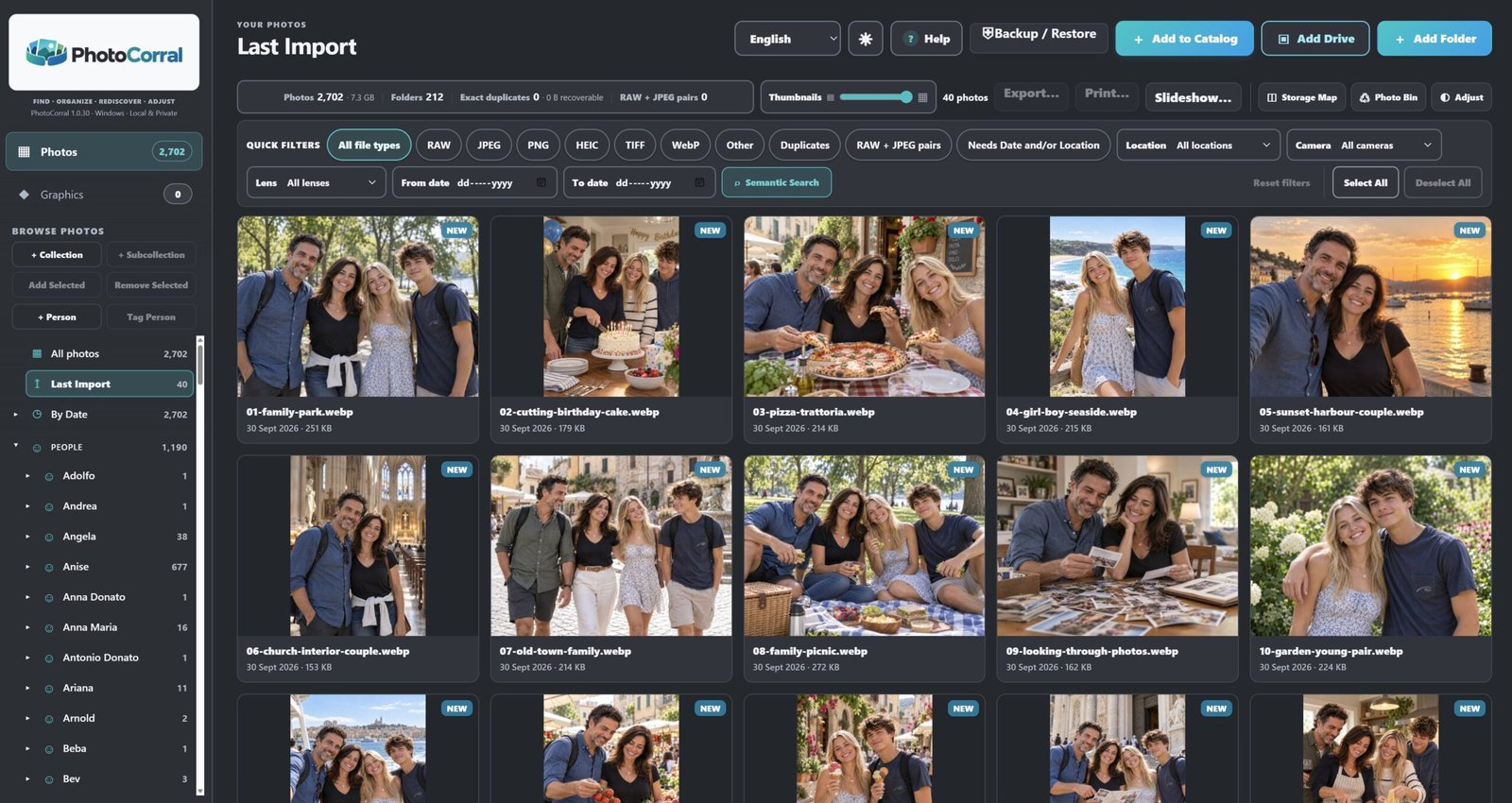
PhotoCorral includes By Date browsing so photographs in the catalogue can be viewed chronologically rather than by the folder in which they happen to be stored.
Search by person
For many people, photographs are remembered by who was in them rather than where the file was saved.
You might think:
“I want that photograph of Susan at the birthday.”
That is a much more natural memory than:
“I think it was inside D:\Photos\2019\Misc\IMG_4821.jpg.”
PhotoCorral’s People section groups recognised faces locally on your Windows computer. Once people have been named, their photographs can be found from the People view without remembering the original folder.
Search by place
Location can be another strong clue.
You may remember that a photograph was taken in Rome, Sydney, Paris or on a particular holiday even when you have no idea which drive contains the file.
When reliable GPS information is available in a photograph, PhotoCorral can use it to organise images under Places. Locations can also be corrected manually when necessary.
This provides another route back to a photograph without depending on filenames or folder structures.
Search by what is actually in the photograph
Sometimes you do not remember the date, person or place.
You simply remember the subject:
“There was a birthday cake.”
“It was a photo of a dog on the beach.”
“I need the picture with the pizza.”
PhotoCorral includes Semantic Search, which can search the local catalogue using ordinary subject descriptions. This gives you a different way to find photographs when traditional folder and filename searches are not useful.
The search runs locally rather than requiring your photo library to be uploaded to a cloud photo service.
Do not reorganise everything manually before you can find it
A common reaction to a messy photo collection is to start creating folders and manually moving thousands of files around.
That can become a large job very quickly, and it still leaves you dependent on remembering the folder structure later.
A catalogue gives you another option.
PhotoCorral can scan selected folders or drives for supported images and bring them into one managed photo catalogue. Your source originals remain untouched during the normal Add to Catalog workflow.
Once photographs are in the catalogue, you can find them through multiple routes:
- People
- Places
- By Date
- Collections
- Semantic Search
- Last Import
The same photograph does not have to belong to only one mental category.
A photograph from a family holiday can be found because of the person, the location, the date, a collection, or the subject visible in the image.
A practical way to begin
You do not need to catalogue every photograph you have on the first day.
Start with one folder or one drive.
Let PhotoCorral bring those photographs into the catalogue, then spend a little time exploring People, Places, By Date and Semantic Search.
Once you are comfortable with the workflow, you can add more of your photo collection.
The aim is simple:
Stop trying to remember where the file is. Start finding the photograph by what you remember about it.
Try PhotoCorral in your browser
If you would like to see how the catalogue works before installing the Windows application, you can explore the PhotoCorral Web Demo.
The browser demo lets you try many of the catalogue, viewing and search workflows using sample photographs, while features that require direct Windows access are clearly identified as installed-app features.
